
Start Here · Step 0
Connect ChatGPT to your Google workspace
Before the personalized work begins, link Gmail, Google Calendar, and Google Drive in ChatGPT Enterprise. The full setup exercise is included below so participants can complete everything from this page.
Why connect?
Gmail
Analyze your real email
The email style exercise can use Gmail to build a communication profile from real sent messages.
Google Calendar
See your real schedule
Your daily briefing can reference actual meetings, priorities, and calendar context.
Google Drive
Work on real documents
ChatGPT can find and reference documents you already have access to in Google Drive.
Step 1
Connect Gmail
1
Open Company Knowledge
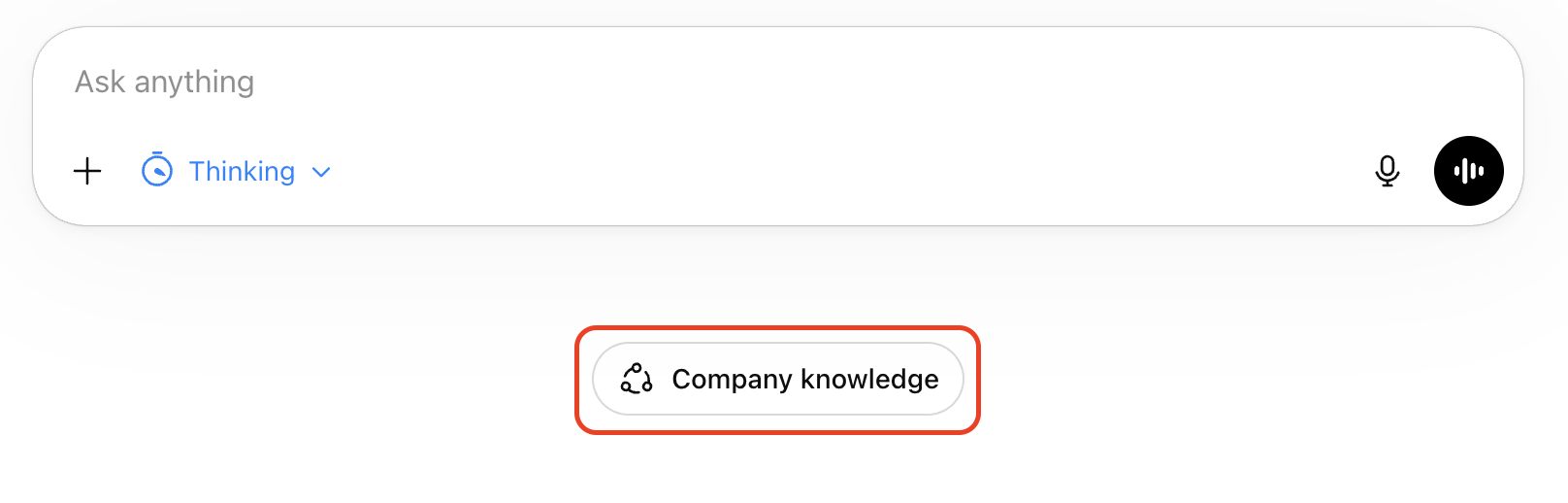
Click Company Knowledge in the ChatGPT composer
Open ChatGPT in the University of Maryland workspace. In a new chat, click Company Knowledge under the message box.
2
Set up Company Knowledge
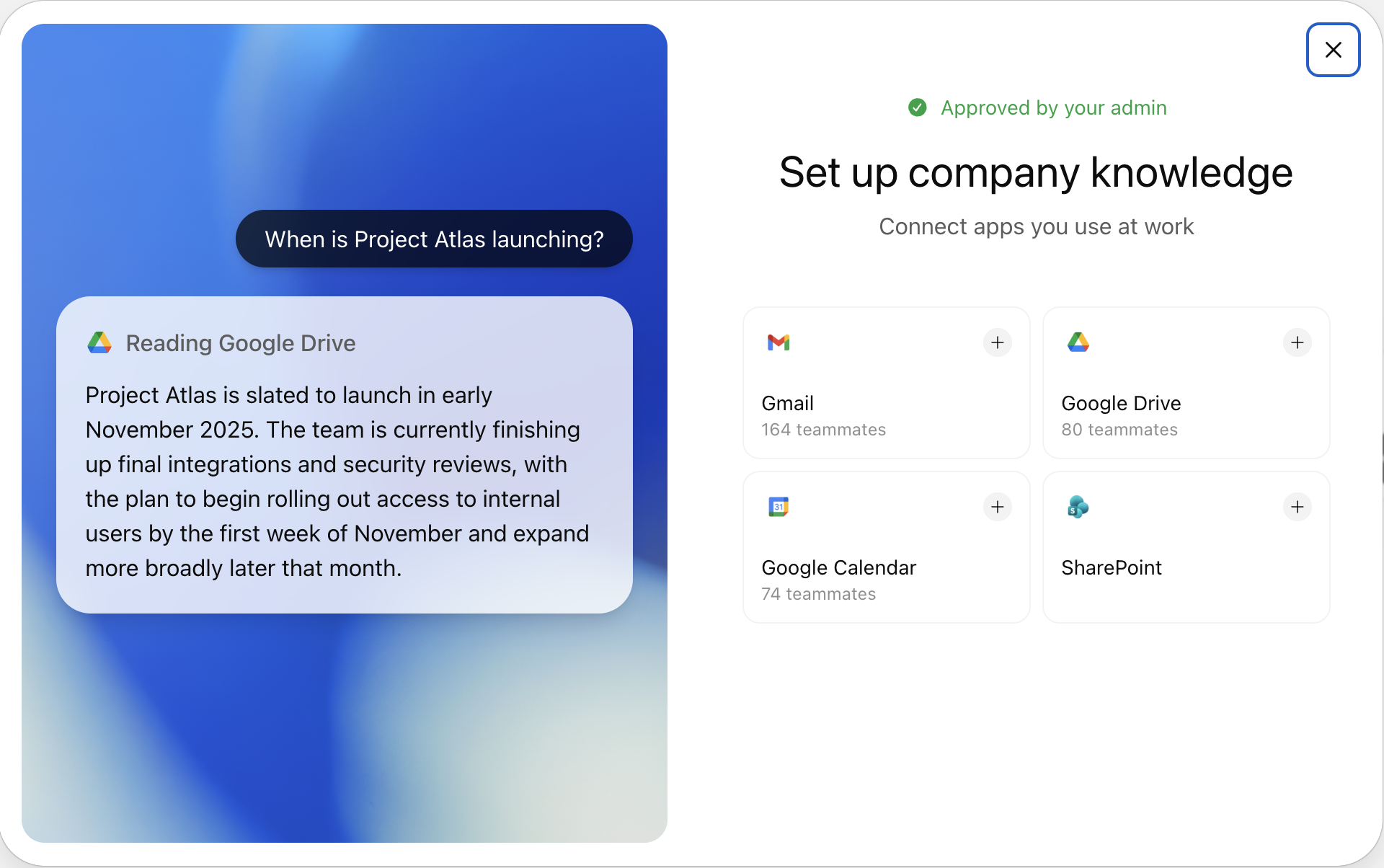
Select Gmail from the setup page
On the Set up company knowledge page, click the Gmail tile. This starts the Gmail connection flow.
3
Continue to Gmail
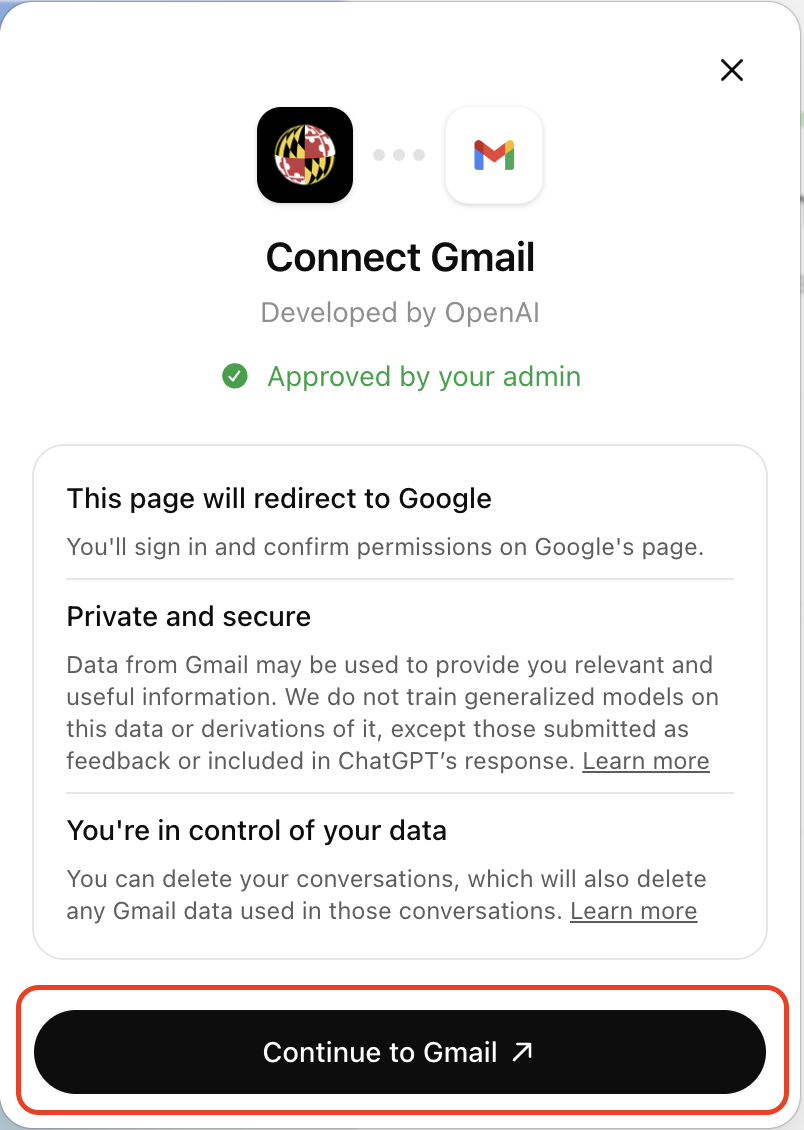
Click Continue to Gmail
On the Gmail connection screen, click Continue to Gmail. ChatGPT will redirect you to Google to confirm the account and permissions.
4
Google authorization
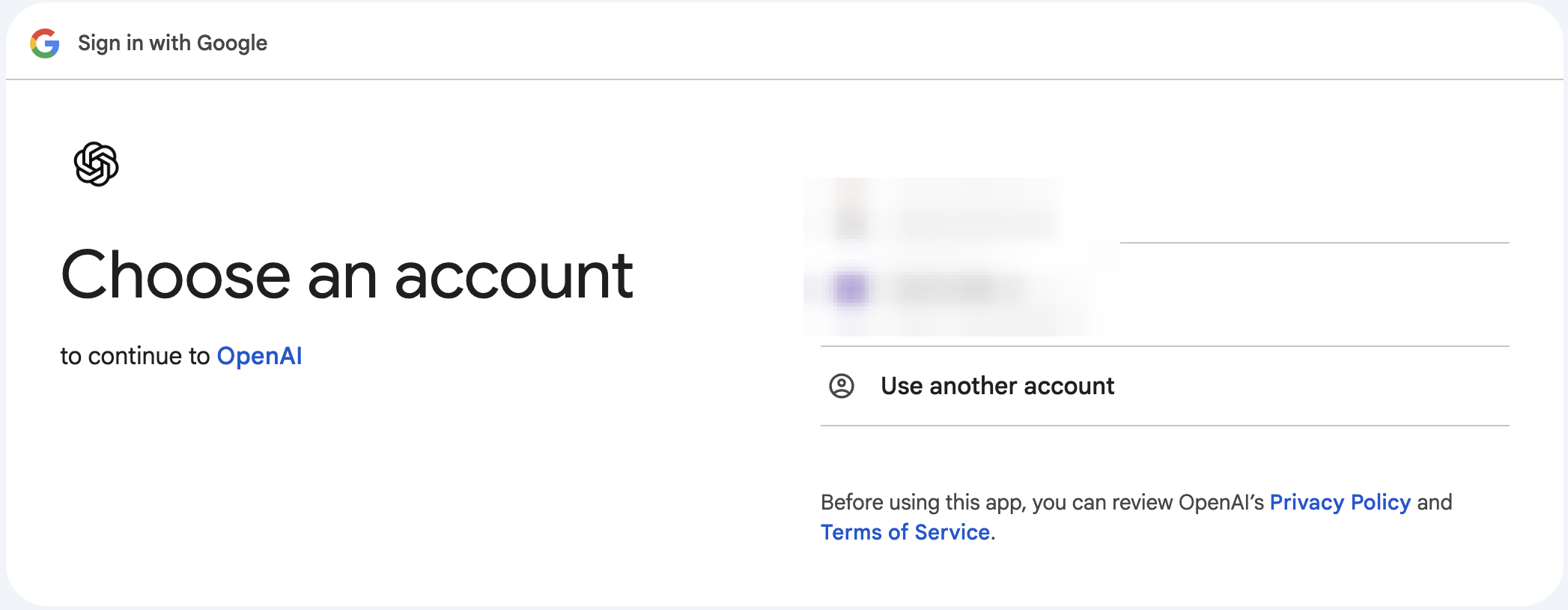
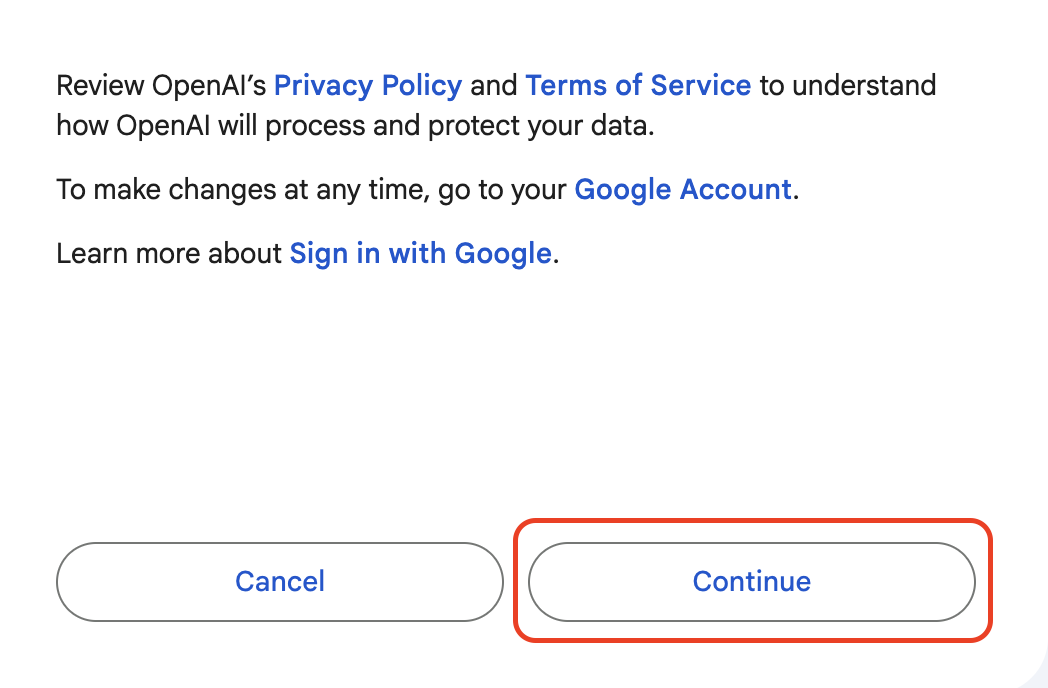
Choose your @umd.edu account, accept privacy, then trust OpenAI
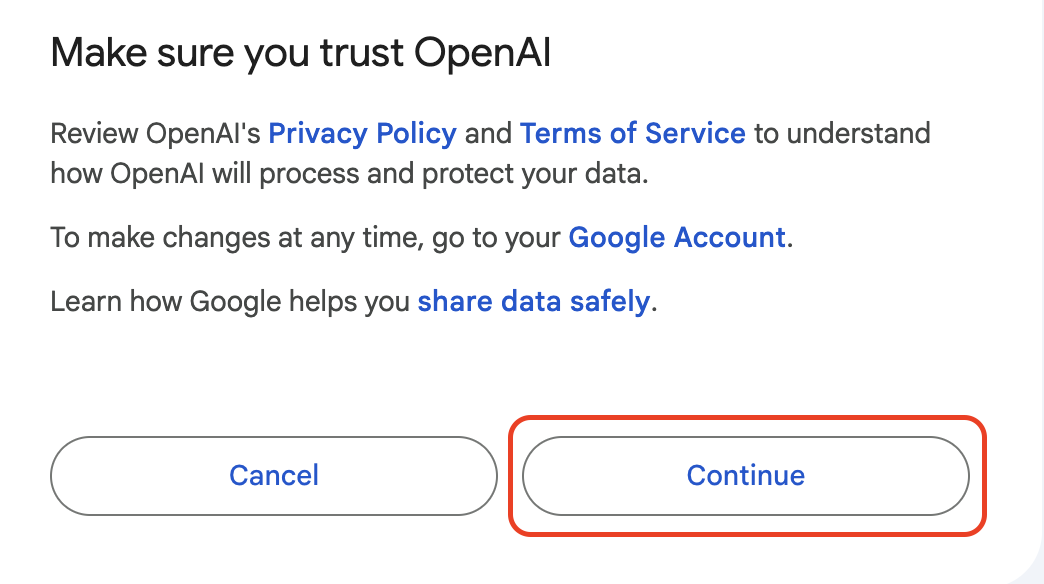
Complete these Google screens in order: choose your @umd.edu account, click Continue on the privacy policy screen, then click Continue on the Trust OpenAI screen.
Step 2
Connect Google Calendar
1
Repeat the Company Knowledge flow
Select Google Calendar, then continue to Google
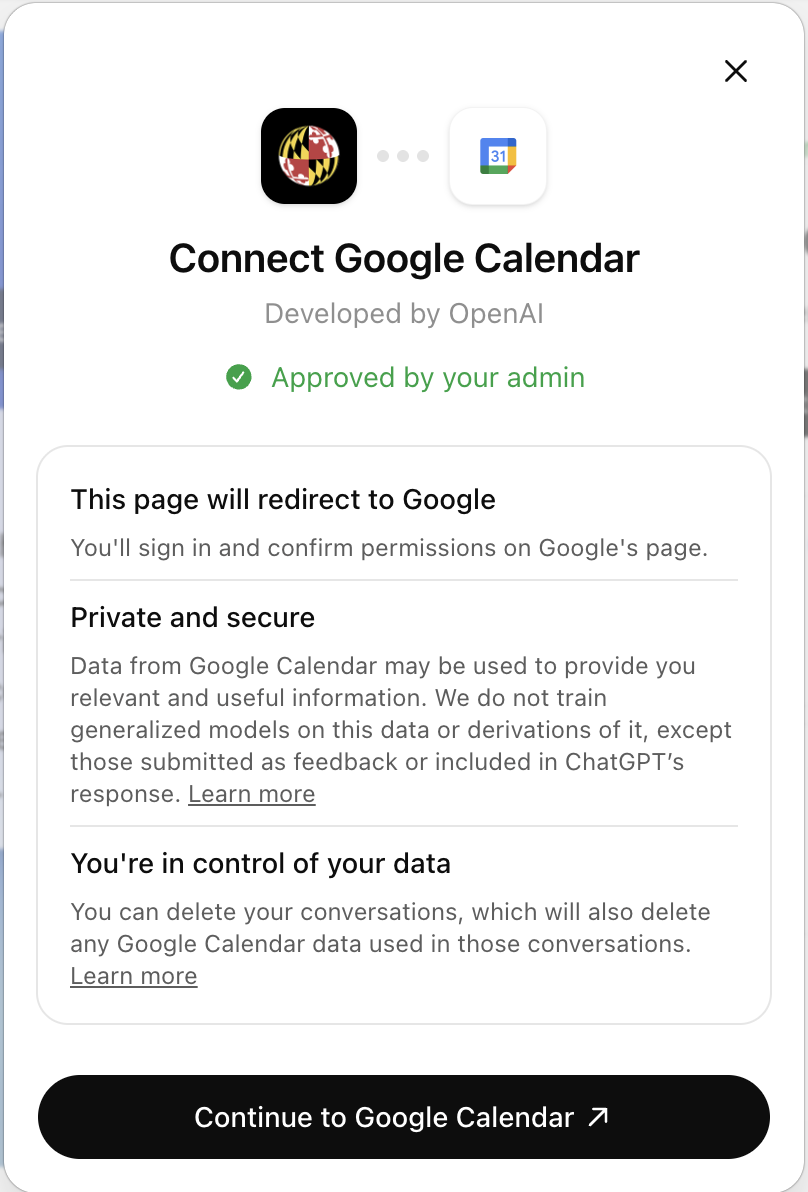
Return to the Set up company knowledge page, select Google Calendar, and click Continue to Google Calendar. Then repeat the same Google authorization sequence from Gmail: choose your @umd.edu account, click Continue on the privacy policy screen, and click Continue on the Trust OpenAI screen.
Step 3
Connect Google Drive
1
Repeat the Company Knowledge flow
Select Google Drive, then continue to Google
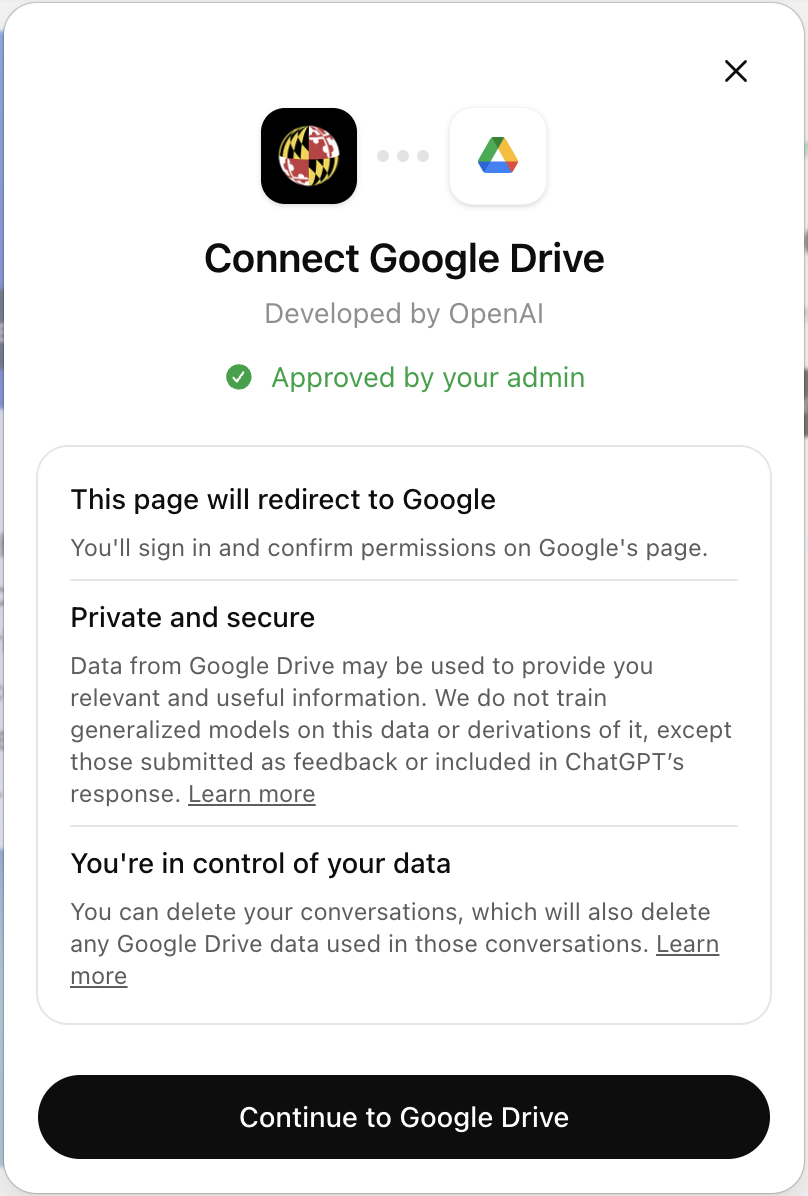
Return to the Set up company knowledge page, select Google Drive, and click Continue to Google Drive. Then repeat the same Google authorization sequence from Gmail: choose your @umd.edu account, click Continue on the privacy policy screen, and click Continue on the Trust OpenAI screen.
What you can do now
Gmail
Analyze writing style, draft replies that match your voice, surface emails needing follow-up, and build your daily briefing from real inbox content.
Google Calendar
Create daily briefings that reference today’s meetings, prepare for upcoming conversations, and spot scheduling conflicts.
Google Drive
Find documents, summarize long files, and draft communications grounded in documents you already own or can access.
A note on data privacy
OpenAI’s Company Knowledge documentation says users authenticate their own apps and that ChatGPT respects the user’s existing permissions. In this setup, connect only your UMD account and review the Google consent screens before continuing. You can disconnect apps later from ChatGPT settings or your Google account security settings.
All connected? You're ready.
Go to your personalized exercises
Use the activity list on this page to continue to ChatGPT, Email Style, Daily Briefing, or NotebookLM.